Choose an organization and workspace
After signing in, choose an organization if you belong to more than one. In the organization console, use the workspace selector at the top of the sidebar to switch workspaces. Choose Create Workspace from the selector menu if you have permission to add one. Organization pages remain available below the workspace menu.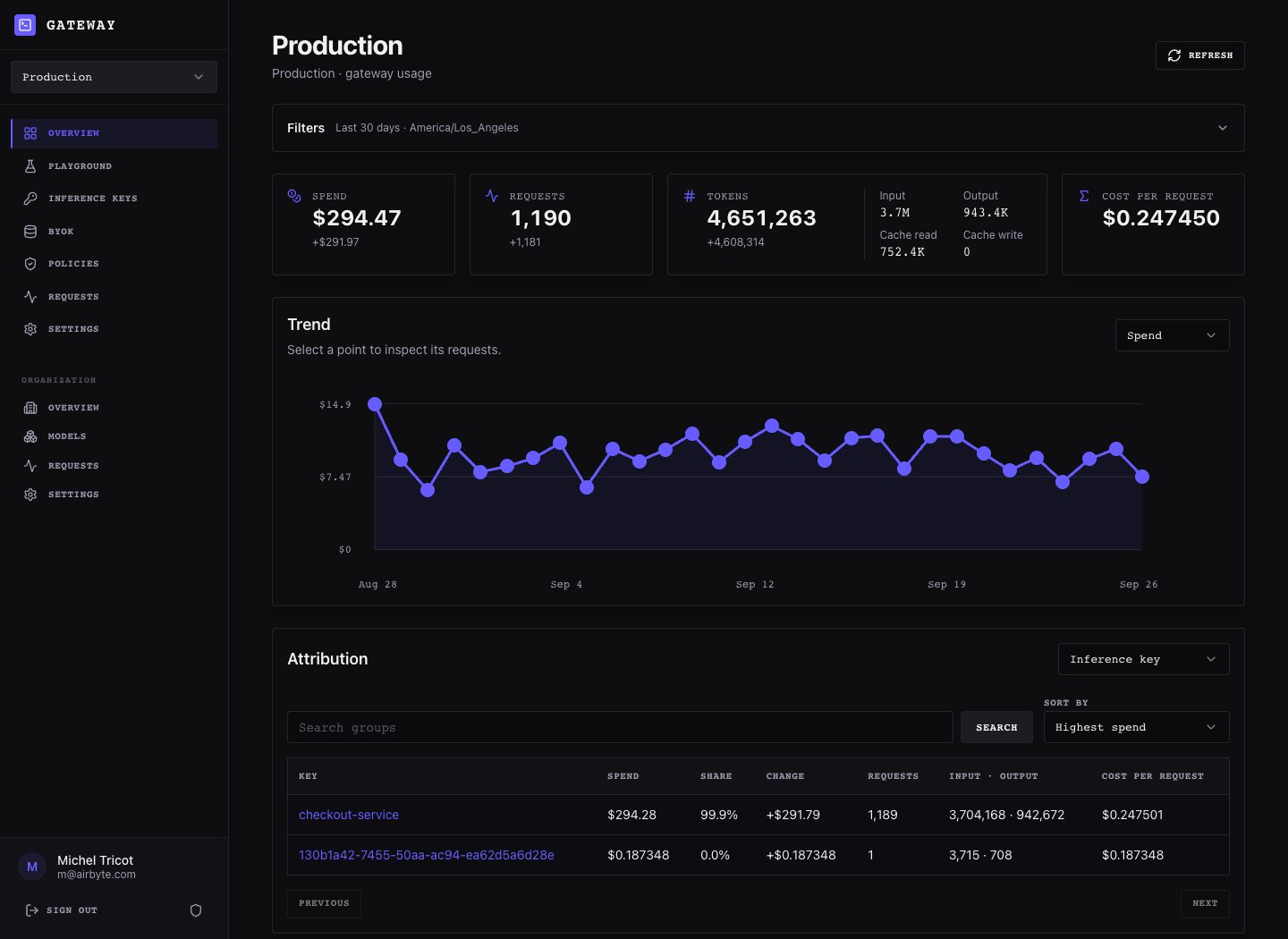
Workspace navigation and a 30-day usage overview with historical activity
Organization menu
These pages apply to the selected organization: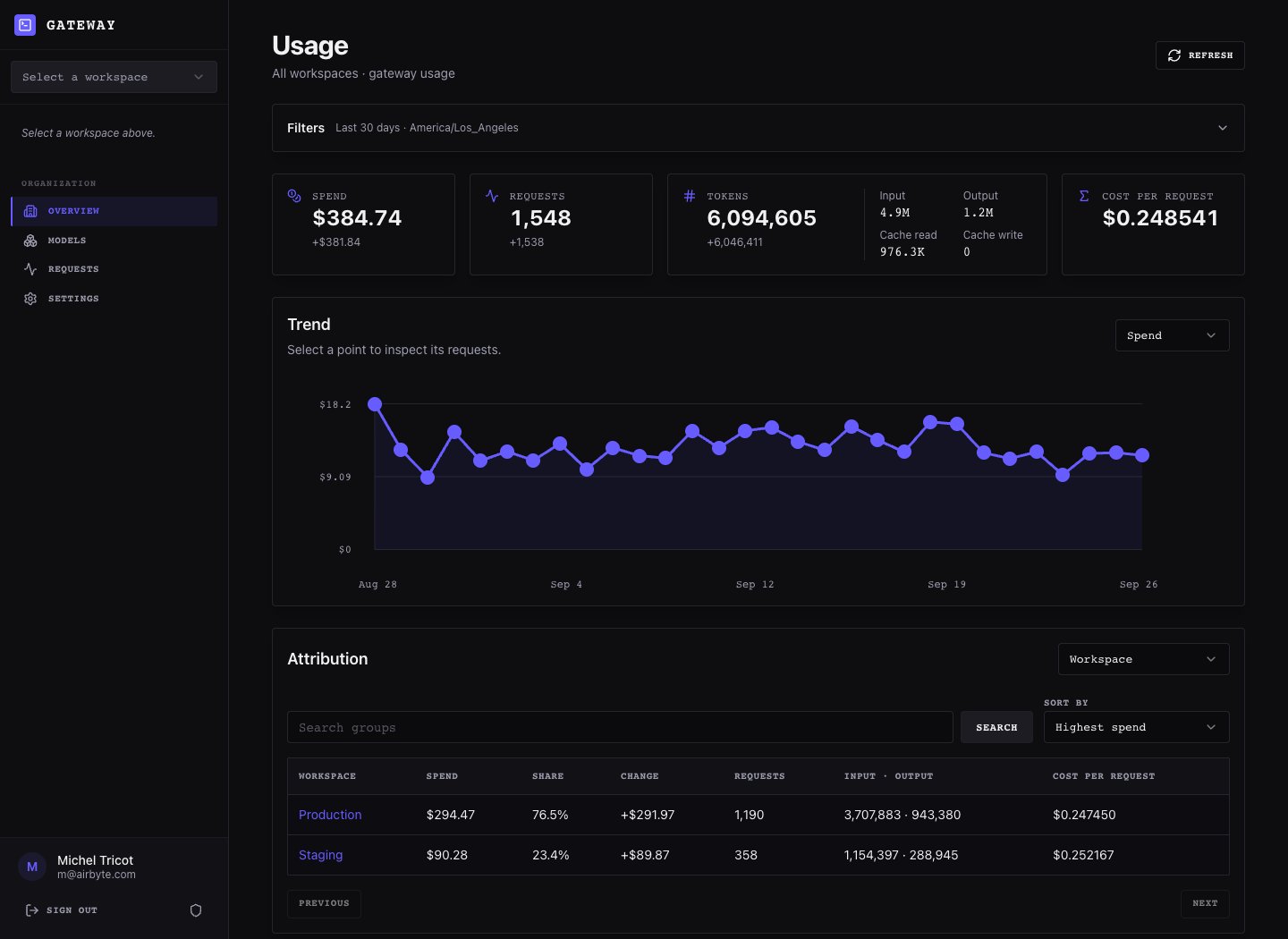
Organization usage across a 30-day history, attributed to its production and staging workspaces
Workspace menu
Select a workspace to see its pages. The workspace menu applies to that workspace only: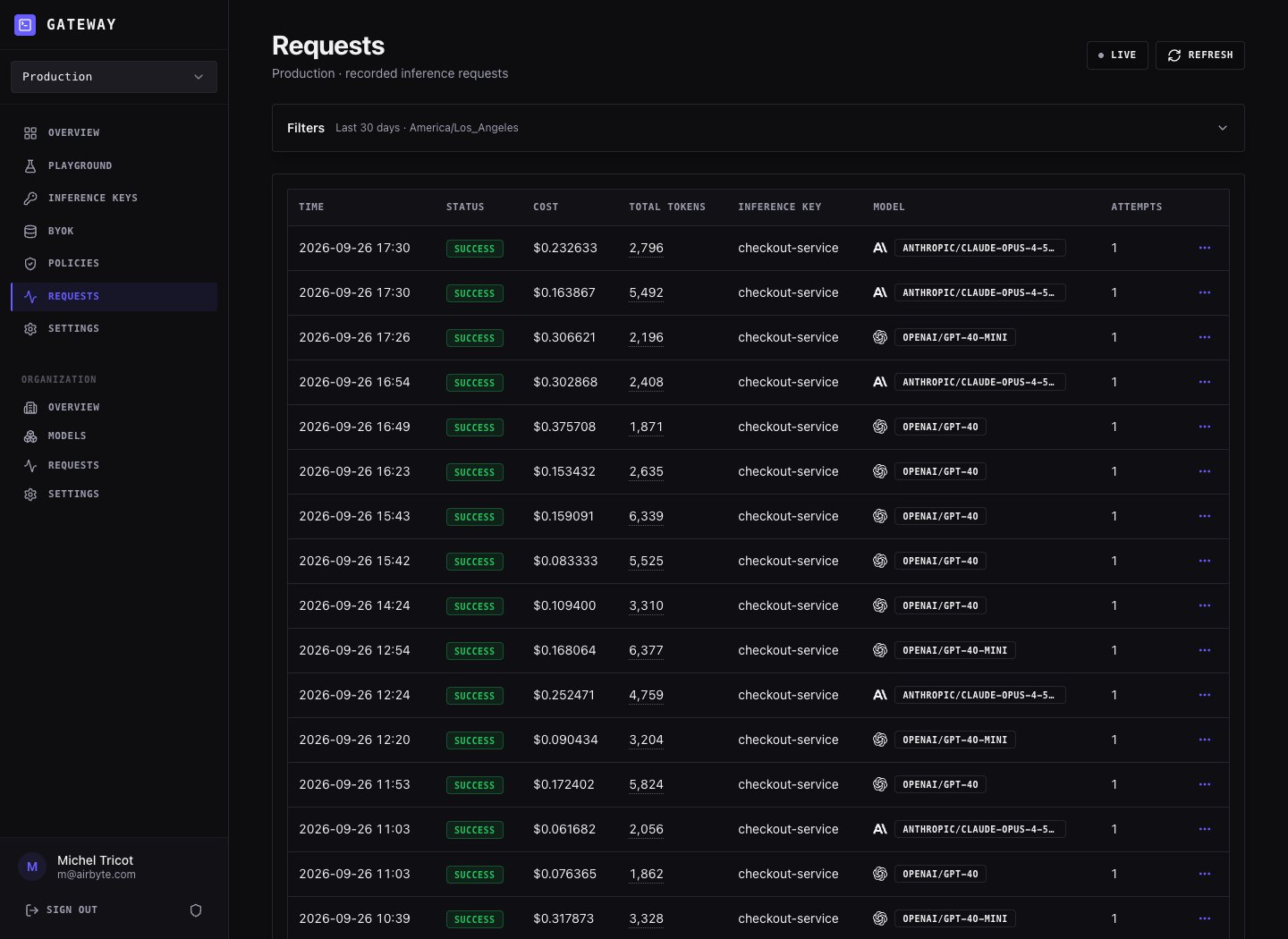
Production workspace usage across the last 30 days
Instance management
The instance console is available to accounts with an instance role. Select the shield icon from the organization console or Workspace console from the instance sidebar to switch between the two consoles.
Opening an organization shows its details and workspaces, with actions to rename or delete the organization when you
have permission. Open a workspace from there to inspect or manage that workspace. Instance menus are permission-filtered,
so an auditor or other limited role may see fewer actions than an owner.
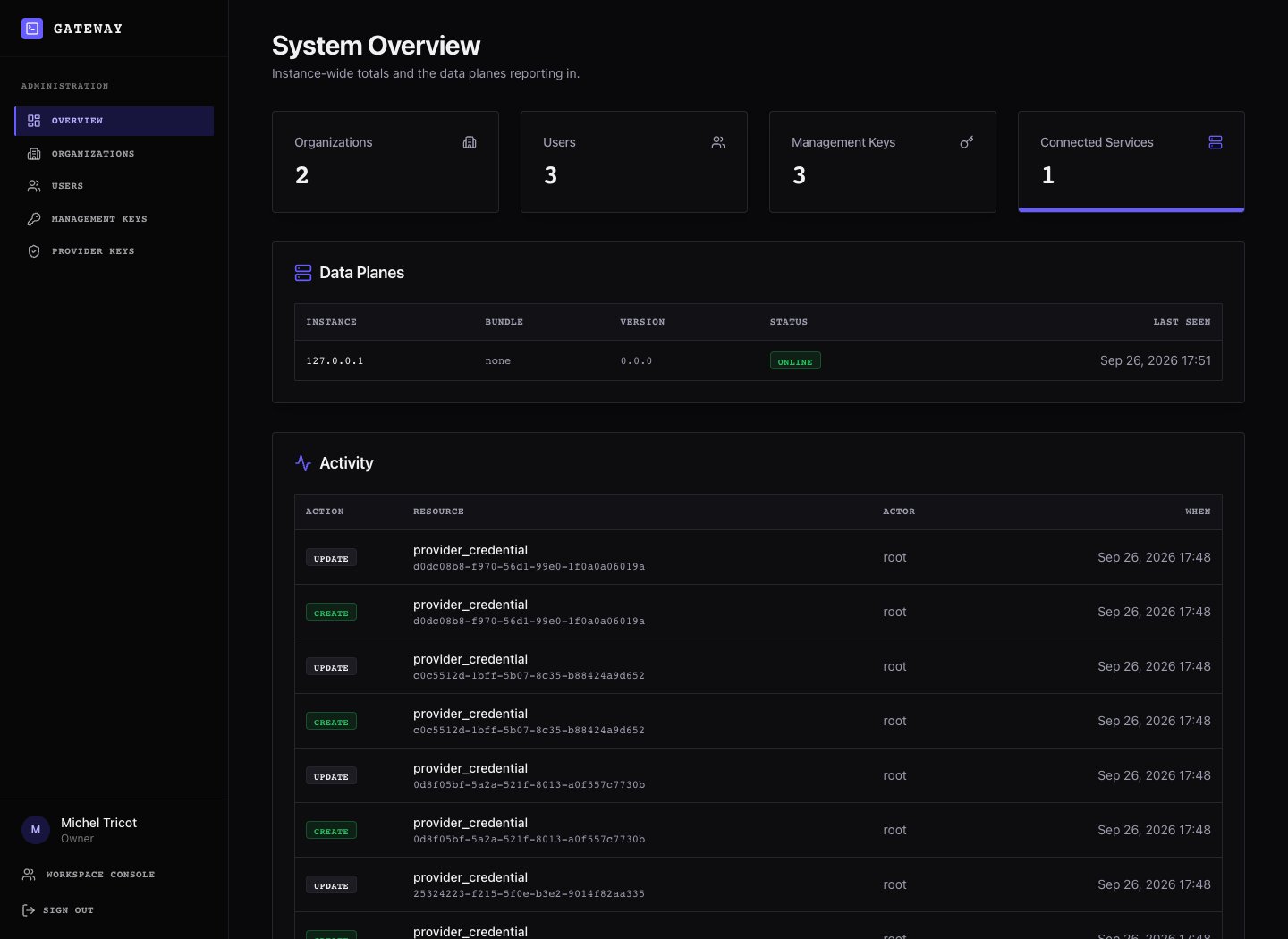
Instance overview with an online data plane and recent activity
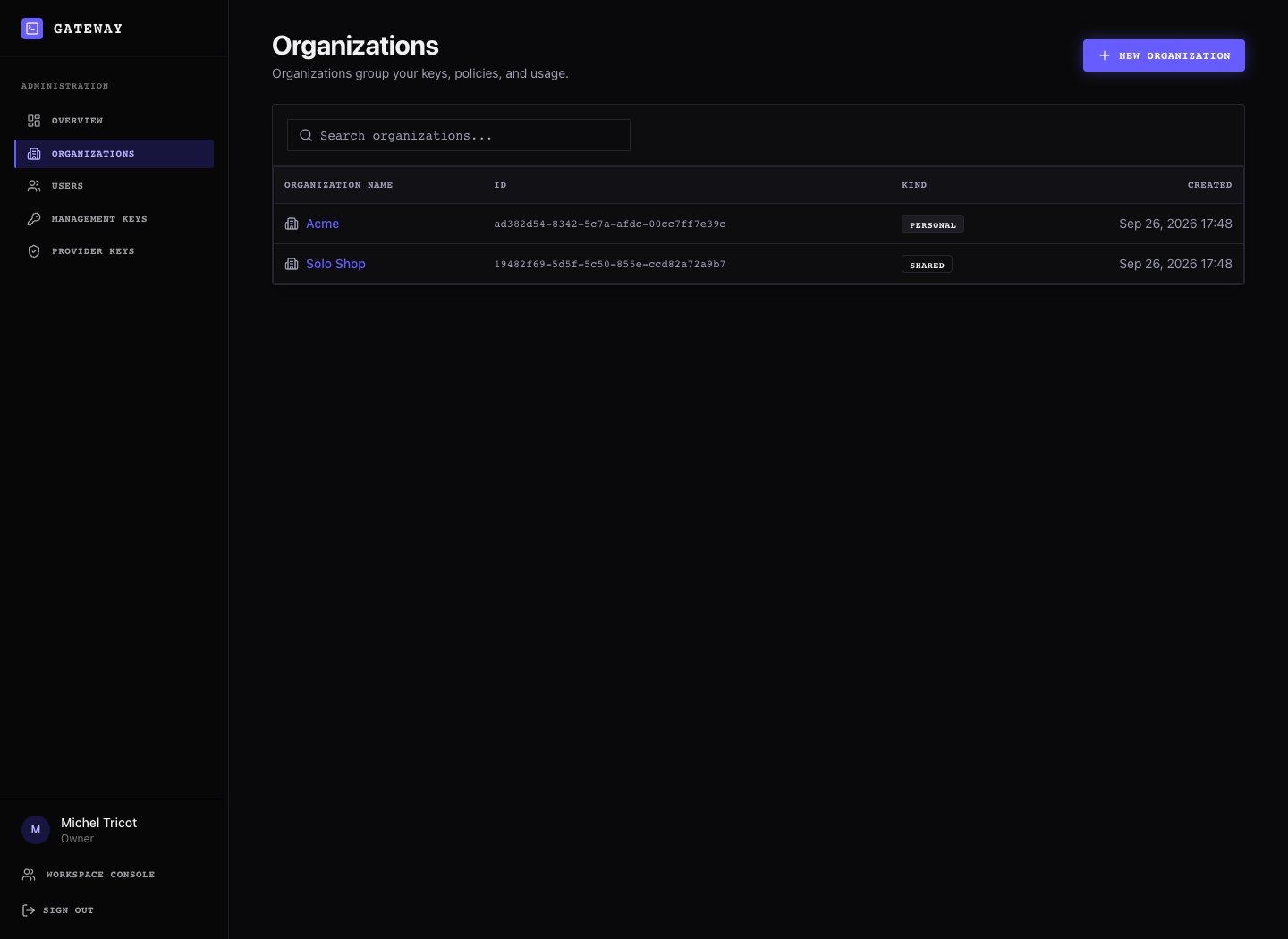
Instance organization list
Common tasks
Add a provider credential for a workspace
- Select the organization and workspace
- Open BYOK
- Add a credential for the provider and give it a recognizable name
- Use Rotate on the credential when its secret needs replacing
airmux provider-credentials add openai --org, or the control-plane API.
Create an application key
- Select the workspace that should own the key
- Open Inference Keys and create a key
- Copy the secret when it is shown; it is only displayed at creation
- Give the key to the application that sends requests to the gateway
Review a request
Open Requests at the organization or workspace scope. Set the available filters to narrow the report, then open a request to inspect its details. Workspace reports stay within one workspace; organization reports cover the organization’s workspaces.Invite a person
Open Organization → Settings → Members to invite someone to the organization. You can assign an organization role and optionally add a workspace membership. The webapp creates an invitation link for you to share. Workspace membership can also be managed from Workspace → Settings. For role definitions and service-account setup, see Manage users and access. For policy design, see Workspace policies.The usage screenshots use the repository’s synthetic development fixtures: 1,200 Production events and 360 Staging events spread across 30 days, plus recent example requests. The totals and catalog prices are illustrative. No external provider was called or billed.